
While there is a wealth of artifacts on Windows systems that can be used to tell the story of a security incident, probably the most valuable is also the most accessible: Windows Event logs.
Unfortunately, the default Windows settings do not help the investigator; not enough is logged, and the default log sizes are so small that often only a day or two of events are actually available. While the default logging includes some extremely valuable information, adding some optional logging can dramatically increase the ability to reconstruct the story of an incident, to the point where other artifacts may not be needed.
This post will review those optional settings and provide a checklist of valuable logs whose default settings should be modified.
Let’s get started!
Jump to…
Windows Event Logs Review
Windows Event Logging
Auditing
Conclusion
Windows Event Logs Review
Before we get started, here’s a quick review of important facts about the Windows Event Logs:
| Event IDs are not unique. Any application can write event log entries and specify its own Event ID. There have even been occasions when applications have used duplicate Event IDs for their entries in the same log! |
| While the Security log holds a plethora of useful information relevant to IR investigations, there is a wealth of information in other logs. |
| By default, once the maximum log size is reached, old entries start getting deleted. |
| Default maximum log size varies by operating system and log. For Windows 10 & 11, they are mostly 20MB, although some are smaller. |
| A 20MB event log file will contain around 15,000 records. |
| A 20MB security log on a Windows 11, domain-joined system with a single user will generate around 7,000 records a day (with the auditing recommended below enabled). Yes, that’s right, if you don’t have a SIEM, you will only have two days of security events. If you enable auditing, that will be even shorter. We had a client who had enabled all the auditing options on their systems, without changing the default log size. They reached out to ask why Cyber Triage was not reporting some of the logon events they expected to see. A quick review of their logs found that they only had 30 minutes worth of entries in their security log! |
| Most SIEMs do not collect a fraction of the most useful event log records. This is no failing of the SIEM; rather, a reflection on the volume of events available. |
NOTE
Investigators can use Cyber Triage to collect and analyze Windows Event logs and get rapid insight into malicious activity.
Windows Event Logging
There are a number of event logs beyond the security log that can provide significant value in the event of an incident investigation. These have the added advantage of being less likely to be targeted by a threat actor during an incident. I have certainly worked many cases where the security log has been cleared, but the other logs have been untouched.
The following logs can provide valuable insight into threat actor actions on a Windows system:
| The Logs |
|---|
| Security |
| System |
| Application |
| Microsoft-Windows-TerminalServices-RDPClient/Operational |
| Microsoft-Windows-TerminalServices-LocalSessionManager/Operational |
| Microsoft-Windows-TerminalServices-RemoteConnectionManager/Operational |
| Microsoft-Windows-TaskScheduler/Operational |
| Microsoft-Windows-WinRM/Operational |
| Windows PowerShell/Operational |
| Microsoft-Windows-PowerShell/Operational |
| Microsoft-Windows-Windows Defender/Operational |
| Microsoft-Windows-Windows Firewall With Advanced Security/Firewall |
| Microsoft-Windows-WMI-Activity/Operational |
| Microsoft-Windows-Bits-Client/Operational |
| Microsoft-Windows-GroupPolicy/Operational |
| Microsoft-Windows-RemoteAssistance/Operational |
| Microsoft-Windows-Windows Remote Management/Operational |
| Microsoft-Windows-Backup/Operational |
| Microsoft-Windows-Shell-Core/Operational |
| Microsoft-Windows-Sysmon/Operational* |
| DHCPAdminEvents |
| Microsoft-Windows-WinRM/Operational |
| Microsoft-Windows-DHCP-Server/FilterNotifications |
| Microsoft-Windows-DHCP-Server/Operational |
| Microsoft-Windows-NTLM/Operational |
| Microsoft-Windows-Security-Mitigations/UserMode |
| Microsoft-Windows-Security-Mitigations/KernelMode |
| Microsoft-Windows-SmbClient/Security |
NOTE
*Sysmon currently has to be installed, but will shortly be included with Windows by default. However, it will not be enabled by default. Read more here: https://techcommunity.microsoft.com/blog/windows-itpro-blog/native-sysmon-functionality-coming-to-windows/4468112
A Note on Log Sizes
While average dwell times appear to be decreasing to less than a week, a good rule of thumb is to aim for at least 90 days of logs, ideally 365. This means that for a Windows desktop system, the security log should be expanded to at least 1GB.
Log sizes on servers are far more variable and will depend on the server role, number of users accessing it, and the applications it is running. The table below provides some recommended minimum sizes for key event logs. These are just a starting point. You can determine if these sizes are appropriate for your systems by checking the age of the oldest record in the logs and using that to determine what size you need your logs to be. For example, if you have 7 days of logs and want 90, you will need to multiply your current log size by 90/7.
100MB should be enough for most logs, with the exceptions listed below.
| Log | Minimum Recommended Size |
|---|---|
| Security | 1GB |
| System | 256MB |
| Application | 256MB |
| Microsoft-Windows-PowerShell%4Operational* | 4GB |
NOTE
*The size requirements of the PowerShell Operational log are highly dependent upon the amount of PowerShell used in your environment, and can range from MB to multiple GB. Keep in mind that some applications (for example, Sentinel One) will also make extensive use of PowerShell, so it is not just a question of what scripts you are using internally.
Adjusting the Maximum Log Size
Maximum log size can be set on a system-by-system basis from the event viewer, just right-click on the log, and you will have access to log properties with the option to set maximum log size. Unfortunately, while it is possible to set defaults for the Application, Security, and System logs via GPO, setting defaults for other event logs for all systems in the domain will require the use of wevutil or setting registry keys.
Option 1 (recommended): wevtutil
Wevtutil is used to configure event logs at the command line. Using the /ms switch, we can set the MaxSize value for the log.
For example:
C:\Windows\system32>wevtutil sl "Microsoft-Windows-TaskScheduler/Operational" /ms:100MB
This will set the maximum log size of the Task Scheduler Operational log to 100MB.
Below is a sample PowerShell script to set the default log sizes to 100MB:
# Desired log size
$MaxSizeBytes = 100MB

# Event logs to configure
# add your additional logs to the list below.
$EventLogs = @(
    "Microsoft-Windows-TerminalServices-RDPClient/Operational",
    "Microsoft-Windows-TerminalServices-LocalSessionManager/Operational",
    "Microsoft-Windows-TerminalServices-RemoteConnectionManager/Operational",
    "Microsoft-Windows-TaskScheduler/Operational"
    "Microsoft-Windows-WinRM/Operational"
    "Windows PowerShell"
)

foreach ($log in $EventLogs) {
    try {
        wevtutil sl "$log" /ms:$MaxSizeBytes
    }
    catch {
        Write-Error "Failed to set max size for log: $log"
    }
}
Option 2: Editing the Registry
Event log settings are stored in the registry in two locations, depending on the log. Logs in the root of Applications and Services Logs can be found in
HKLM\SYSTEM\CurrentControlSet\Services\EventLog\$logName
while other logs will be in
HKLM\SOFTWARE\Microsoft\Windows\CurrentVersion\WINEVT\Channels\$logName
The log name, or channel, includes both the folder and log seen in Event Viewer.
In both cases, the maximum log size is stored in a DWORD value named MaxSize. This value can be updated via PowerShell or a .reg file. Below is a sample script to set the MaxSize value of event logs to 100MB:
# Desired log size
$MaxSizeBytes = 100MB

# Event logs to configure
$Channels = @(
    "Microsoft-Windows-TerminalServices-RDPClient/Operational",
    "Microsoft-Windows-TerminalServices-LocalSessionManager/Operational",

"Microsoft-Windows-TerminalServices-RemoteConnectionManager/Operational",
    "Microsoft-Windows-TaskScheduler/Operational",
    "Microsoft-Windows-WinRM/Operational",
    "Microsoft-Windows-Windows Defender/Operational",
    "Microsoft-Windows-Windows Firewall With Advanced Security/Firewall",
    "Microsoft-Windows-Bits-Client/Operational",
    "Microsoft-Windows-GroupPolicy/Operational",
    "Microsoft-Windows-RemoteAssistance/Operational",
    "Microsoft-Windows-Windows Remote Management/Operational",
    "Microsoft-Windows-Backup/Operational"
)

# Base key: HKLM\SOFTWARE\Microsoft\Windows\CurrentVersion\WINEVT\Channels
$baseSubKey = "SOFTWARE\Microsoft\Windows\CurrentVersion\WINEVT\Channels"

# Open HKLM in the 64-bit registry view (most common on modern Windows)
$hklm = [Microsoft.Win32.RegistryKey]::OpenBaseKey(
    [Microsoft.Win32.RegistryHive]::LocalMachine,
    [Microsoft.Win32.RegistryView]::Registry64
)

foreach ($ch in $Channels) {
    try {
        # Create or open the channel key (channel name is used verbatim as subkey name)
        $keyPath = "$baseSubKey\$ch"
        $k = $hklm.CreateSubKey($keyPath, $true)

        if (-not $k) { throw "Failed to open or create registry key." }

        # Set DWORD MaxSize
        $k.SetValue("MaxSize", $MaxSizeBytes, [Microsoft.Win32.RegistryValueKind]::DWord)
        $k.Close()
    }
    catch {
        Write-Error "Failed setting MaxSize for '$ch': $($_.Exception.Message)"
    }
}

$hklm.Close()
Auditing
By default, a limited set of security events is recorded in the security log. It is strongly recommended that additional audit settings are enabled in order to provide significantly greater insight into system events during an incident response investigation.
Audit settings can be configured via GPO. The recommended settings are:
| Windows Settings\Security Settings\LocalPolicies |
|---|
| Audit Policy\Audit account logon events: Success, Failure |
| Audit Policy\Audit account management: Success, Failure |
| Audit Policy\Audit logon events: Success, Failure |
| Audit Policy\Audit object access: Success |
| Audit Policy\Audit policy change: Success, Failure |
| Audit Policy\Audit process tracking: Success |
| Audit Policy\Audit system events: Success, Failure |
| Windows Settings\Security Settings\Advanced Audit Policy Configuration\Audit Policies |
| Account Logon\Credential Validation: Success, Failure |
| Account Logon\Audit Kerberos Service Ticket Operations: Success, Failure |
| Account Management\Audit User Account Management: Success, Failure |
| Detailed Tracking\Process Creation: Success |
| Detailed Tracking\Process Termination: Success |
| Logon/Logoff\Audit Logon: Success, Failure |
| Logon/Logoff\Audit Logoff: Success, Failure |
| Logon/Logoff\Audit Other Logon/Logoff Events: Success, Failure |
| Logon/Logoff\Special Logon: Success |
| Policy Change\Audit Audit Policy Change: Success |
| Policy Change\Authentication Policy Change: Success |
| Policy Change\Audit Authorization Policy Change: Success |
| Policy Change\Audit Other Policy Change Events: Success |
| System\Audit Other System Events: Success |
| System\Audit Security State Change: Success |
| System\Audit System Integrity: Success |
Command and Process Line Logging
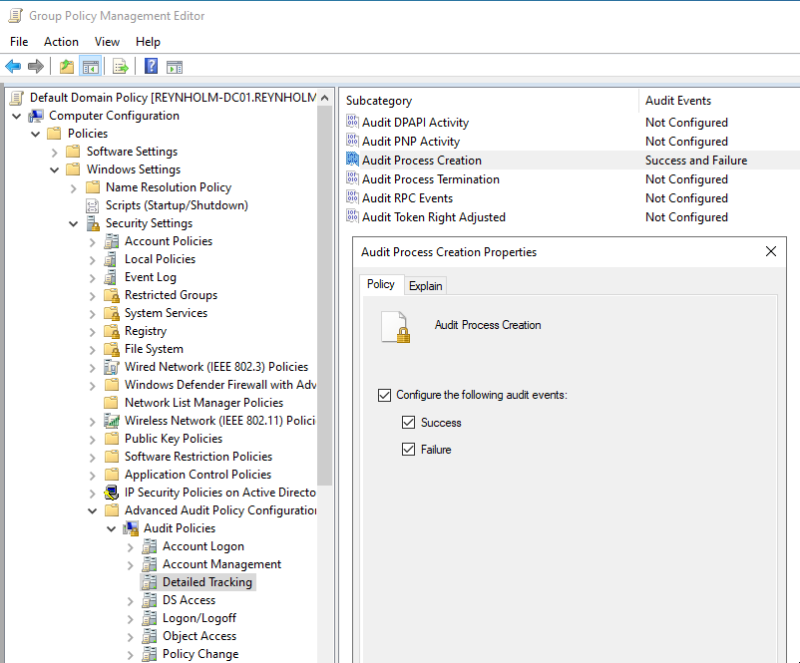
If process auditing is enabled, then event ID 4688 will be recorded in the security log each time a process is started. There are 2 settings that need to be enabled in order to log full process details.
The first is to enable auditing of process creation. This is done via Advanced Audit Policy Configuration\Audit Policies\Detailed Tracking\Audit Process Creation.
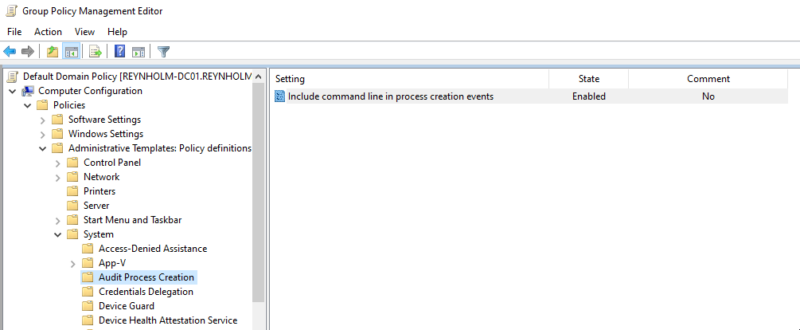
The second is to enable command-line logging, which will include any arguments passed to a process in the security log as event ID 4688. This is extremely useful when investigating living off the land, which probably encompasses most incidents these days. Command line logging is enabled from Administrative Templates: Policy definitions\System\Audit Process Creation\Include command line in process creation events: Enabled
PowerShell Logging
By default, PowerShell only logs script blocks when specific ‘suspicious’ modules are used. It is better to just log all PowerShell activity. PowerShell is frequently abused by threat actors, and having a log of all the scripts and commands they have run is priceless when conducting an investigation.
PowerShell logging can be configured via GPO.
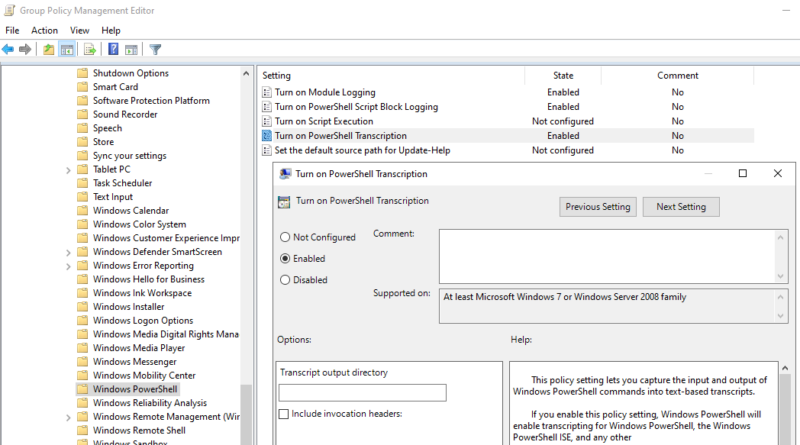
To access the PowerShell configuration in GPO navigate to Administrative Templates: Policy definitions\Windows Components\Windows PowerShell and enable the following:
- Turn on Module Logging
- Turn on PowerShell Script Block Logging
- Turn on PowerShell Transcription
PowerShell Module Logging
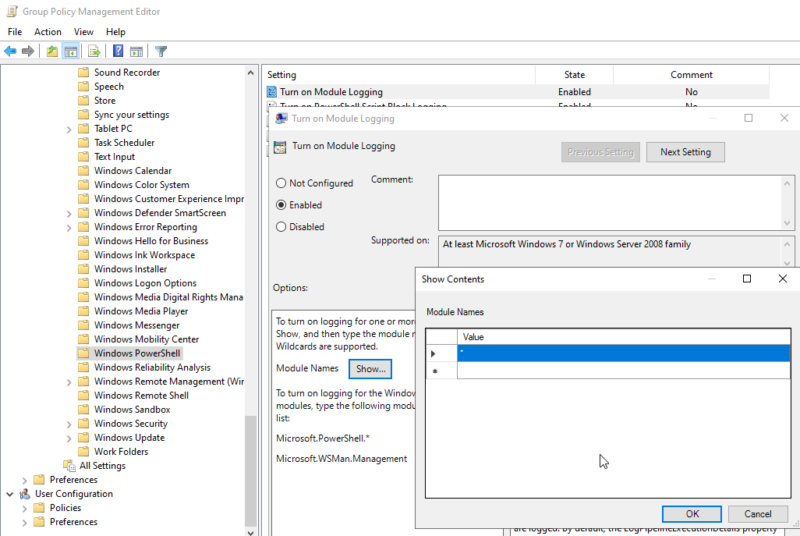
Module logging records PowerShell modules as they are used, along with cmdlets and parameters passed to them. These are recorded as Event ID 4103. Note that this is not the same as script block logging, which records the entire contents of scripts.
The screenshot below shows enabling PowerShell module logging via the GPO.
PowerShell Script Block Logging
By default, Windows will log scripts containing specific cmdlets considered to be a risk. You can find a list of these in the PowerShell code here.
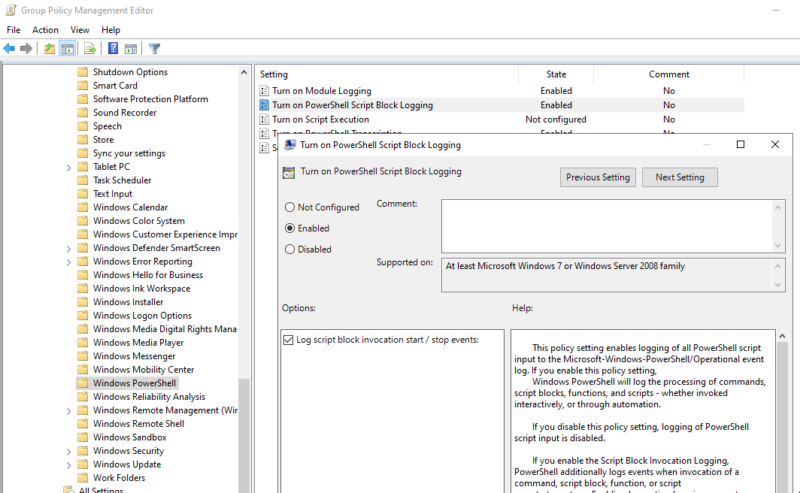
However, threat actors can avoid these by using code obfuscation and avoiding the key cmdlets. If logging is enabled, all scripts are recorded under event ID 4104. Keep in mind that any scripts containing sensitive information are also now getting logged!
Enabling script block logging can generate a very large number of events, especially as any encoded script blocks will have the encoded and decoded versions of the scripts logged. You should review your log retention period once you have enabled this setting and make sure your logs are large enough.
PowerShell Transcription
When transcription logging is enabled windows maintains a transcript of user activity. By default, this will be in the user’s home My Documents directory, but it can also be configured. As with script block logging, keep in mind that this transcript can include sensitive information, including passwords. So if enabled, care should be taken to restrict access to the log directory.
Microsoft-Windows-TaskScheduler/Operational
The TaskScheduler/Operational log is the only one in our list that is not enabled by default. There does not appear to be a GPO to enable it. So, it needs to be enabled by editing the registry or using wevtutil.exe.
Registry
Set HKEY_LOCAL_MACHINE\SOFTWARE\Microsoft\Windows\CurrentVersion\WINEVT\Channels\Microsoft-Windows-TaskScheduler/Operational/Enabled = 1
Wevtutil.exe
wevtutil.exe sl "Microsoft-Windows-TaskScheduler/Operational" /e:true
Conclusion
Having the right logs available for analysis can save hours or days of analysis time. However, by default, Windows does not log everything we need, and if it does, it does not allocate enough space for the log file. In order to minimize your analysis time, you should enable additional logging and increase the log sizes.
Cyber Triage will collect and analyze your Windows Event logs. It will then score significant events, provide context around them, and identify related activity to provide rapid insight into malicious activity. You can try free for 7 days here.