
As we outlined in our last post, MCP is a way to integrate your DFIR and SOC investigation data with GenAI, such as Claude or ChatGPT. I wanted to give an overview of how MCP works so that you understand how to use it in your investigations.
The 2 main takeaways from this post are:
- What MCP tools are.
- How data flows between MCP servers, clients, and GenAI Servers.
UPDATE: The next post in the series was about skills.
Quick Recap: Ways to Integrate Your DFIR Data
Our last post covered the common ways to get your big investigation data into GenAI:
- Copy and paste or upload: Use a web app or local desktop application. All of the data goes up to the GenAI Server.
- Direct file access: Use a GenAI client (such as Claude Code) that can read your local files and upload them all to the GenAI Server.
- MCP: Integrate an MCP server with your GenAI client (such as Claude Desktop) so that it can get small amounts of data as needed.
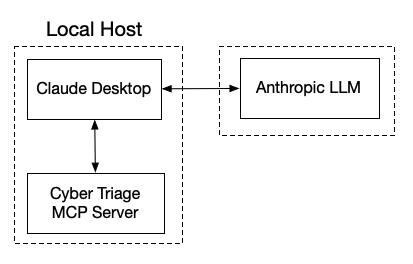
The main benefits of MCP include:
- Uploaded data is more structured, which means less inferring and guessing by the LLM.
- Smaller amounts of data are uploaded, which reduces token usage.
- Can use your own Claude models in AWS or Azure.
- Can enforce read-only access (if the server is designed that way).
Terminology
It’s easy to get confused, so let’s get some basic terminology down.
First, let’s focus on the GenAI components:
- A GenAI Server is a service that runs the LLM and processes the request. Examples:
- GenAI vendor servers, such as Anthropic or OpenAI servers.
- Cloud providers, such as AWS Bedrock, under accounts owned by a vendor or the end user.
- A GenAI Client is how a user or application interacts with a GenAI Server. Examples:
- A chat interface on a website (such as ChatGPT or Claude websites).
- A desktop application (such as Claude Code, Claude Desktop, or ChatGPT Desktop) whose primary job is to interact with servers.
- An application with an integrated client that calls the GenAI Server APIs, but the app has a primary job besides AI.
Now, the MCP components:
- A MCP Server is a service or process that provides access to data sources or functionality for GenAI to use. For the scope of this post, 2 examples include:
- Autopsy and Cyber Triage MCP servers that provide access to analyzed data.
- Threat intelligence MCP servers that expose IOCs and detection rules.
- A MCP Client connects to 1 or more MCP servers, collects their available tools, and includes them in requests to a GenAI server. It then calls the tools that the GenAI server requests. The most common example:
- Claude Desktop
Expanding on the graphic that we had before, these are the components:
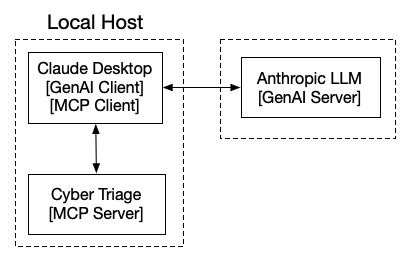
Claude Desktop is both MCP and GenAI client and is essentially a middleman between the servers.
Some notes:
- This works even if you are using Claude models hosted in AWS or Azure. Claude Desktop can talk to both of those locations.
- ChatGPT Desktop can also do this, but it requires the Pro+ tiers.
MCP Server Concepts
Let’s dive a bit into the technical concepts of MCP servers.
Communication concepts:
- Transport: MCP Servers and clients communicate either over a network using HTTP or a command line tool using STDIO.
- Protocol: MCP Servers and clients communicate using a standard JSON RPC protocol. That basically means that JSON is sent back and forth in a structured way.
Regardless of the transport method, MCP Servers provide 3 types of resources:
- Tools: Functions that can return data and perform actions on behalf of the GenAI server.
- Resources: Data content that can be read by the client. This data is used by the client, rather than being invoked by the GenAI server like a tool.
- Prompts: Pre-written prompt templates, which the user can invoke (such as with a “/” command).
Because the goal of this series is to focus on providing access to data, we’re only going to focus on Tools for this post.
MCP Tool Concepts
One of the resources that an MCP provides is a list of tools that a client can call. A tool is defined by its:
- Name: 1-word name of the tool.
- Description: Natural language description of what the tool does and returns.
- Arguments: List of data types that can direct what the tool returns.
Notably, the type of data that gets returned is NOT currently part of the definition. The GenAI server’s LLM uses the tool description to make guesses about the returned data.
Examples of Investigation MCP Tools
Let’s make this concrete. Cyber Triage has over 25 tools. Let’s look at some simple ones.
This tool lists the hosts in the currently open incident:
- Name: list_hosts
- Description: List all hosts (acquisitions) in the currently open incident. Returns host IDs, host names, ingest state, ingest type (import method), operating system, timestamp when added, and BAD/SUSPICIOUS item counts.Call this first to discover host_id values for per-host tools.
- Arguments: None
That one is nice and simple. The LLM will read the description and call this tool when it needs to know about host_ids, ingest status, etc.
Now let’s look at the tool to get the notable items in an incident. It’s a much longer description, and the key points to call out are:
- Reminds the GenAI server to not trust the suspicious data too much. We had to add that because the GenAI wanted to treat it as fact too much.
- Reminds the GenAI to notify the user these are incident-wide and not specific to a host (in case their prompt was a bit vague).
Both of those help the LLM interpret the results and were added after testing more simple versions.
- Name: get_incident_items_by_score
- Description: Get BAD or SUSPICIOUS threat items across ALL hosts in the incident. Use this when the question is about the incident broadly or when no specific host has been identified. Omit score to return both BAD and SUSPICIOUS items. For a single host only, use get_host_items_by_score. In your response, make sure that you note that the results are incident-wide. Results include analyst labels, comments, analysis results with justifications, and MITRE ATT&CK technique mappings when present. The suspicious results are heuristically scored and should be treated as investigative leads, not confirmed findings. False positives are common. For each item, consider whether there is corroborating evidence before concluding it is malicious — for example, are there bad items in the same timeframe, is the process behavior consistent with an attack, and are there related artifacts that support the conclusion?
- Arguments:
- Score: BAD for confirmed bad items, SUSPICIOUS for suspicious items. Omit to return both.
- Limit: Maximum results to return
Other tools include:
- list_incident_labels: Returns what labels a user has applied to items within the incident.
- search_incident_items: Searches the metadata of items in an incident.
- get_host_timeline: Returns items within a host, sorted by time. Generic data only (like time, name, type).
- get_host_listening_ports: Returns the listening ports for a host. More detailed than what is returned from get_host_timeline.
Data Flow with MCP Servers to GenAI Servers
It’s important to know where your investigation data is going. Let’s map out the data flow.
For simplification, I’m going to use the word “client” to refer to Claude Desktop (or similar), which is both an MCP Client and a GenAI Client.
Setup:
- User launches their MCP server (such as Cyber Triage or Autopsy).
- User launches the client (i.e. Claude Desktop).
- The client queries the MCP server to get its list of tools.
For each prompt from the user:
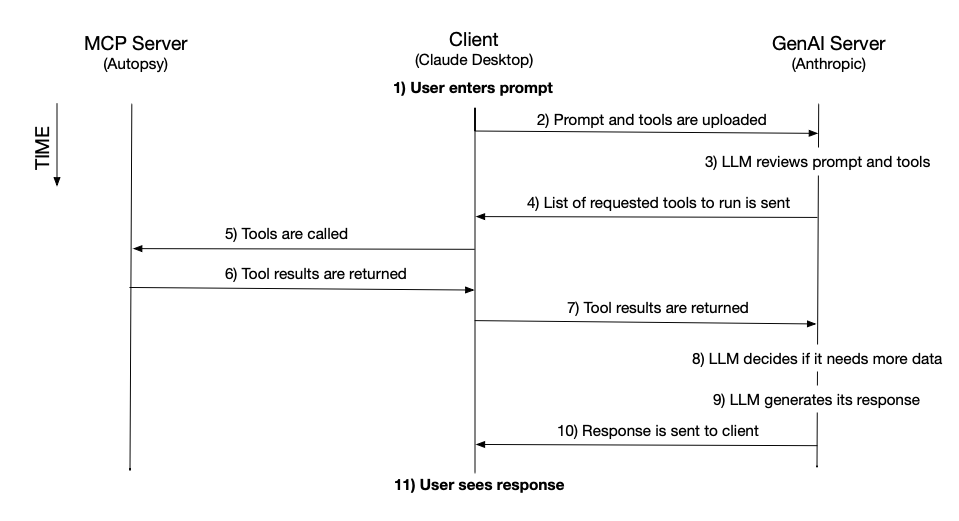
Note that a client may have multiple MCP servers enabled, and then it will send both tool lists to the GenAI server and call 1 or more of the MCP servers to get data.
Example Prompt and Tools
Let’s close this up with an example of what we’ve seen so far.
The user has Claude Desktop connected to the Cyber Triage MCP server and types in:
“What are the suspicious artifacts on the host that was used by the user jdoe?”
The LLM needs to figure out which host the user is referring to and what items on that host are suspicious.
This is how the tools could be used (but this all depends on the LLM…):
Get the user account:
- The LLM decides that it needs to understand user accounts and focuses on the get_user_accounts tool.
- The client calls the get_user_accounts tool and returns the results to the GenAI Server.
- The LLM parses the tool output to find the accounts with a jdoe-like name. The output also shows the host names. If there are many hosts with accounts for that name, it could decide to look at login counts and pick the one with the most logins for jdoe.
Get the suspicious artifacts:
- Once it picks a host (or hosts), it decides to use the get_host_items_by_score tool to see what artifacts were found on that host.
- The client calls the get_host_items_by_score tool and returns the results to the GenAI Server.
- The LLM parses the output which reviews it and sends it back down to the client in a table.
Slightly Non-Deterministic Example
To complicate this a bit, but to help you understand 1 way you may get slightly different results on different days is this prompt:
“Who logged into host1 on April 1?”
The LLM needs to decide between 2 tools in the Cyber Triage tool list:
- get_host_inbound_logins: This tool returns a detailed list of logins for a given host and user.
- get_host_timeline: This tool returns activity on a given day. Its results are more generic because any type of data is returned.
Both SHOULD end up with the same logins, but with varying amounts of detail for each login. The more detailed version (from get_host_inbound_logins) could trigger the LLM to make more connections and perform more enrichment than the generic version. Same core results, but different levels of enrichment.
Also note that a slightly different prompt:
“On April 1, who logged into host1?”
May give a different response because it could call the timeline tool since date was mentioned first.
Again, the core data should be deterministic, but the level of detail and other ideas proposed may not be.
Try an MCP Server for DFIR Today
Want to try using MCP server to investigate with AI? It only takes 2 steps:
- Sign up for an evaluation of Cyber Triage.
- Set up the Cyber Triage MCP server.
This short video will show you exactly how: