
The UI in Cyber Triage 4.0 is a 100% rewrite. We kept a LOT of the same concepts, but moved and evolved several features. This post is for current users who want to know what changed. If you want release highlights, then refer to the release post.
Besides the cosmetic changes, there are two main UI themes with this release:
- Orientation: Updated incident overview, host overview, and notable item views allow you to more quickly orient around the data.
- Item Inspector: We added a new “Item Inspector” view to allow you to dive more deeply into a single artifact and its related items.
This post touches on the major topics, and we also recommend that you watch our 4-minute “How to Investigate” video for a quick run-through of using the interface.
This post is long, so here is the table of contents:
Why Did We Rewrite the UI
There were 2 motivations for this major change:
- Faster decision-making: We want you to be able to make faster decisions about the incident, so we added new panels to orient you to the incident and host and let you dive deeper.
- Team thin client: Many of our Team users have wanted a thin client/web app so that not every user has to update the client. v4 is entirely written in HTML, but we still provide a thick client option.
Some key points on the web app topic:
- It is still self-hosted on your servers (it’s not SaaS).
- Users with a Standard license will barely notice it’s a web app. You’ll still get an installer and launch an exe (that will then run a mini browser and web server behind the scenes).
The Basic Flow Didn’t Change
First, the flow of “Home” -> “Incident” -> “Host” hasn’t changed. You’ll continue to see that in the breadcrumb.
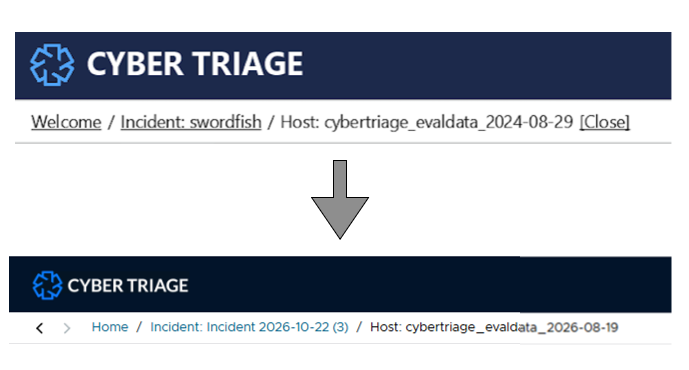
The Big Changes
Table Actions
There is no longer a right-click set of actions when you are in a table. Instead, use the “…” button above the table to get a list of actions. All of the same actions are there.
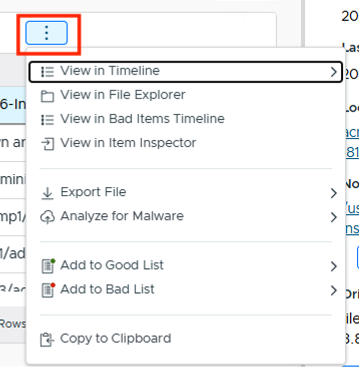
Note that the top menu changes depending on whether anything is selected. With no rows selected, you get filter and search options:

But when a row is selected, it changes to actions on that table (score, “…”, etc.).

Unselect the item(s) to get back to the filters.
Redesigned Incident Overview
The Incident Overview page is shown when you open an incident, and it was updated to give a more complete picture of the incident, ranging from its status to what’s been found.
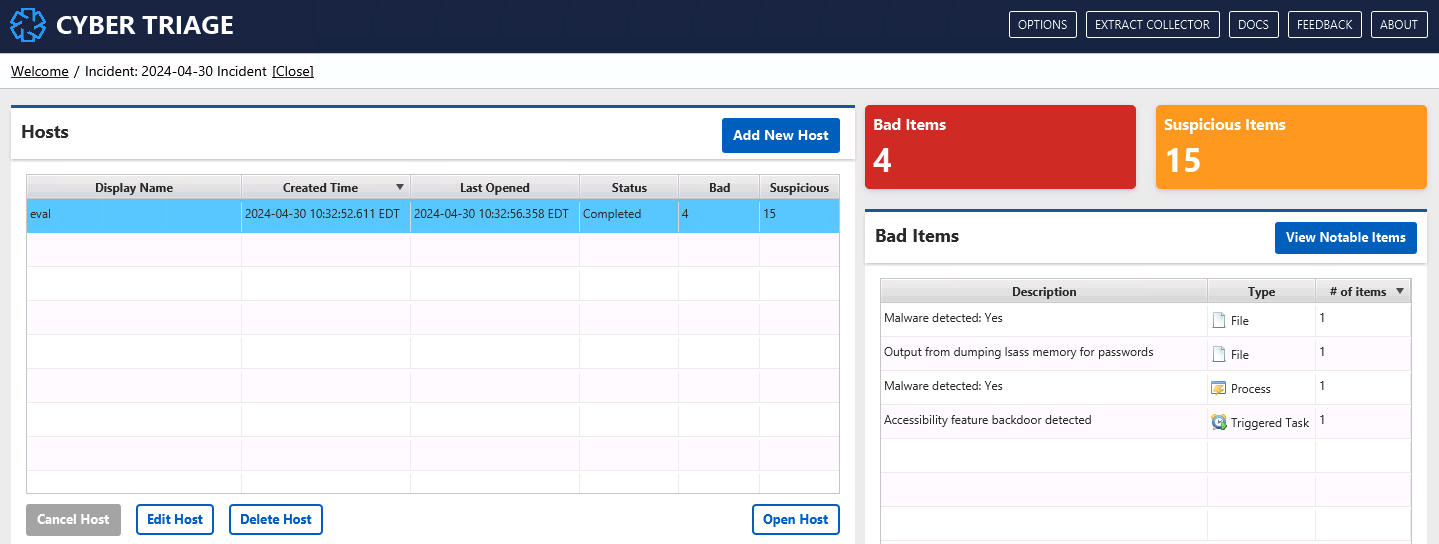
When you opened an incident in v3, you primarily saw the full list of hosts:
In v4, you now get a bit of everything and sub-pages with details:
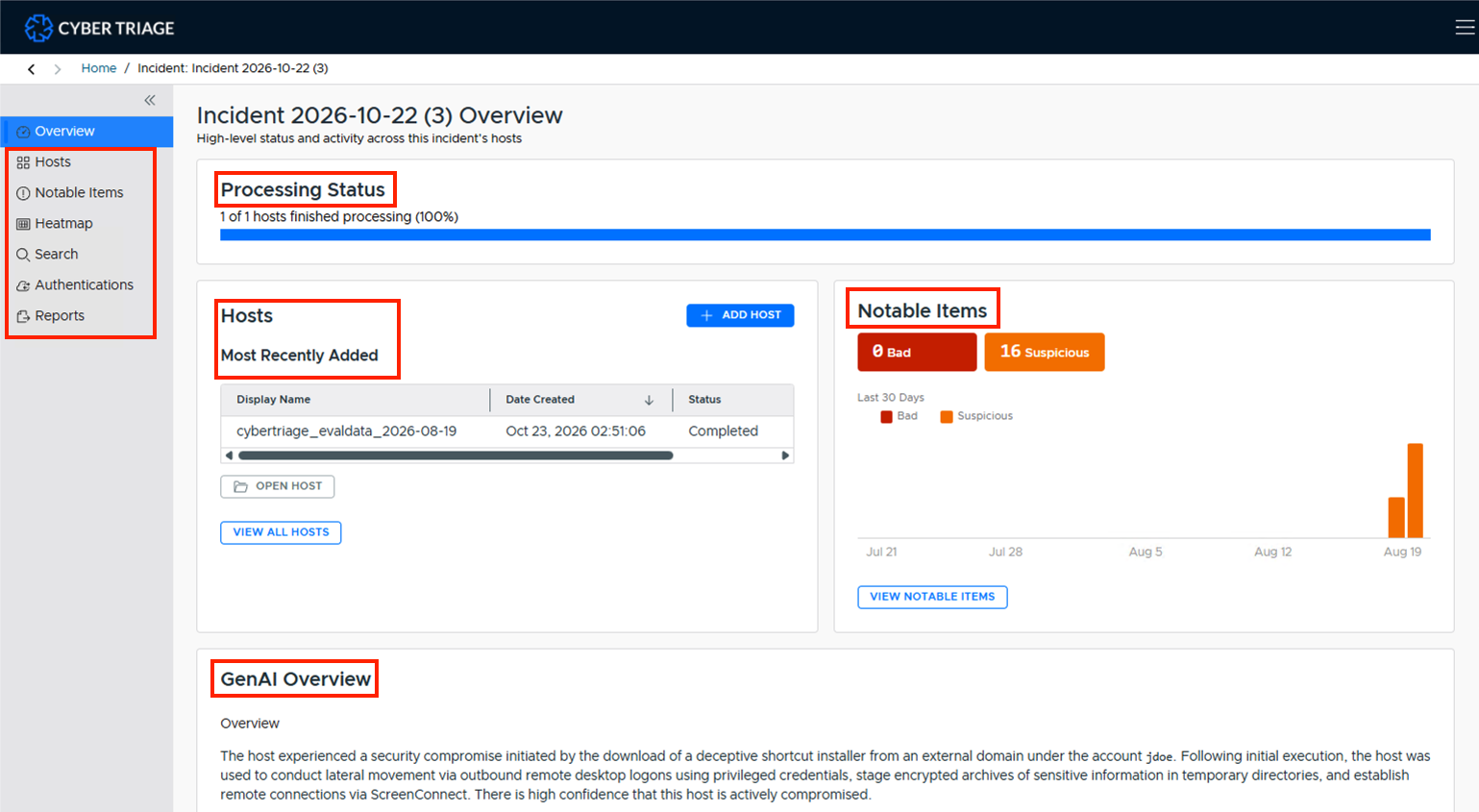
Here’s what changed from v3:
- The full list of hosts moved to the “Hosts” sub page (left-hand menu). But, you can see recently added hosts from the overview page.
- The Notable Items page still exists, but it has been redesigned, see below.
- The AI summary updates after each host finishes and includes notable items from all of the hosts.
- The Search, Reports, and Domain Controller buttons all moved to the left-hand menu.
Redesigned Host Overview
The v4 Host Overview similarly gives you a bit of everything about the host when it is opened. The goal of this page is to give you an overview of what is known about the host and its baseline. The intention is that you spend a minute or 2 on this panel familiarizing yourself with the host when you first open it.
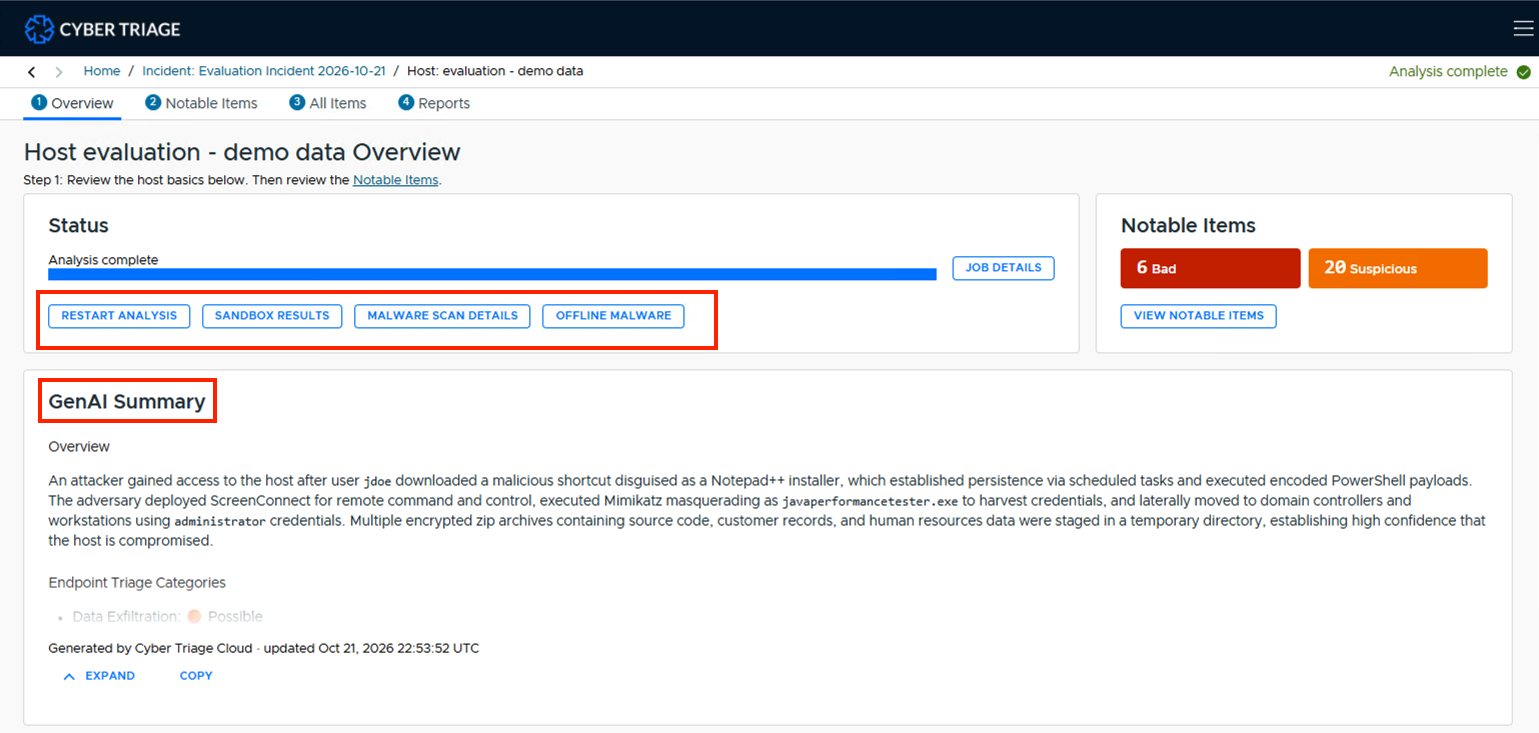
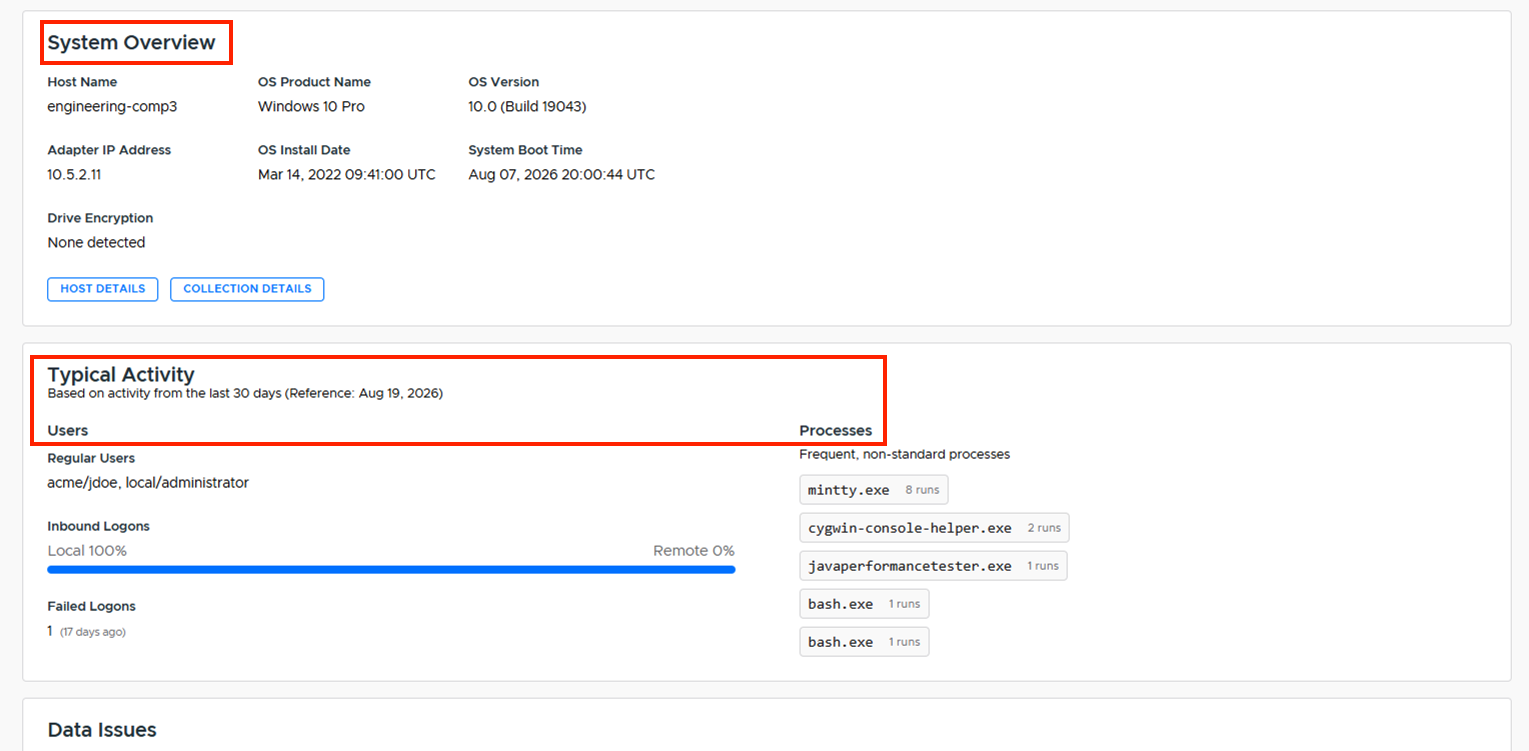
Here’s what changed from v3:
- There is no more left-hand menu for “overview.” We moved it into this panel because we think you should at least skim all this info and know how to find it.
- The Host, Process, and Logon Overview panel concepts have been moved here and largely reduced the amount of data.
- The Bad Items Timeline and Tactics are gone and folded into the new Notable Items view.
- The Status block is where you can restart jobs and track malware scanning.
- AI Summary is created once the ingest completes.
Updated Notable Item Pages
The Notable Item pages were updated to make it easier to review bad and suspicious items. They now share the same basic UI:
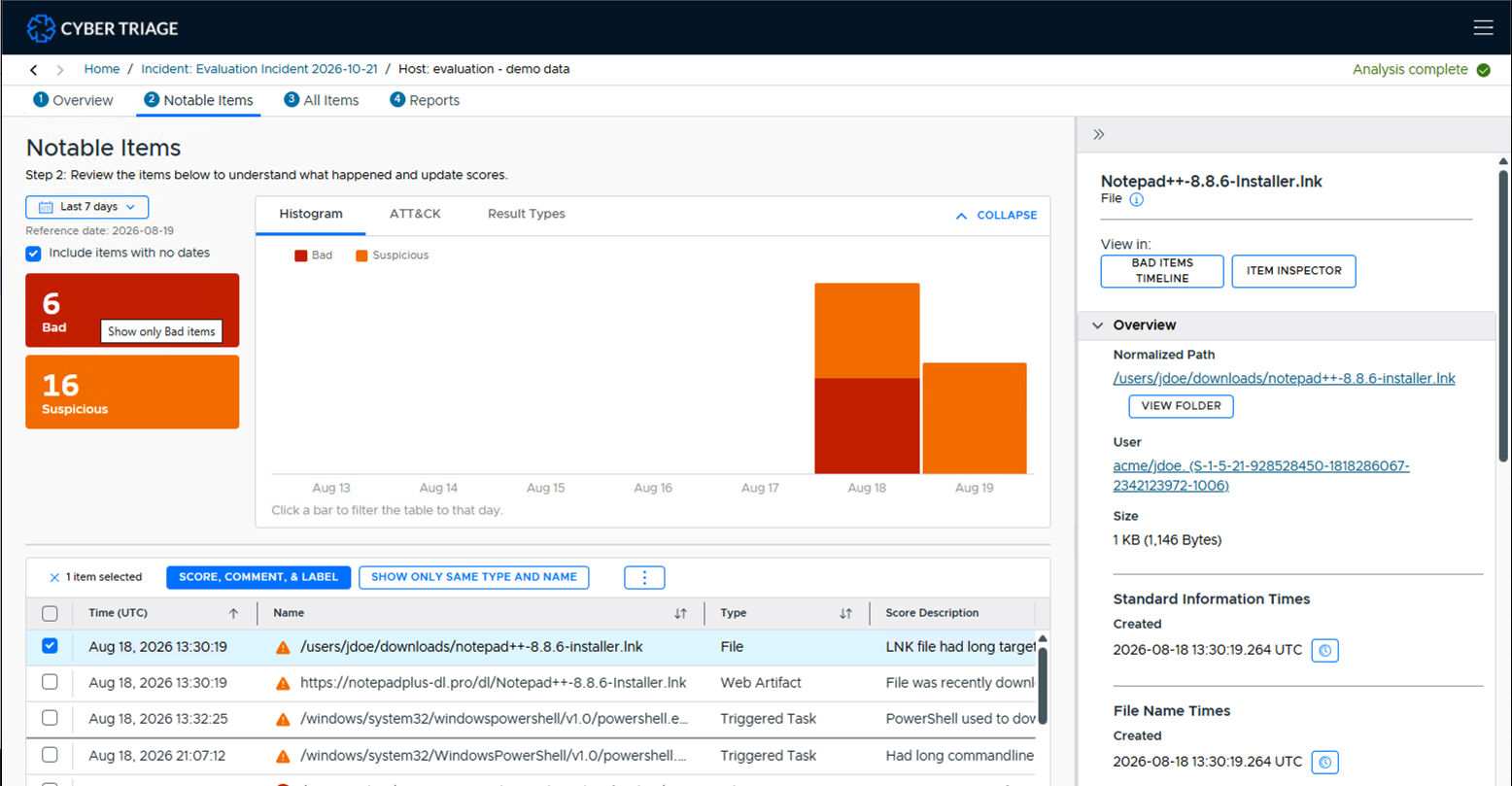
The top part is a set of filters:
- Choose your default date range to focus on
- Select the bad or suspicious count to show just those.
- Toggle between histogram, Tactics, or detection views. Select them to view that specific date.
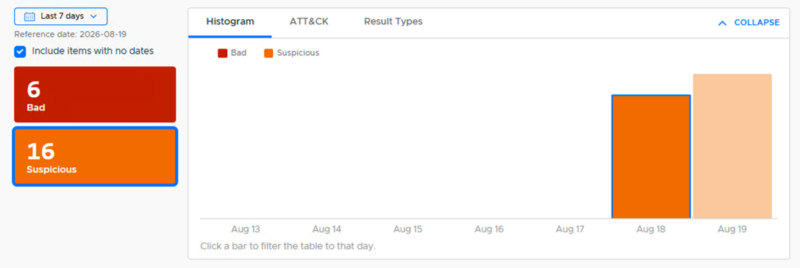
The v4 version keeps the same core filters as v3 but adds visual cues like the histogram and tactics to filter on. The default sort order also changed to be oldest first.
For endpoint triage, we recommend at the host level to:
- Focus on the Last 7 days
- First, show just Bad by clicking on the red rectangle. Make sure you understand them.
- Then bring in suspicious items and go down the list from oldest to newest. Update scores as you decide whether they are Bad.
Lower Right Panels Moved to New Item Inspector
One of the biggest changes in v4 is that we no longer have a list of tabs in the lower right.
v3 looked like this:
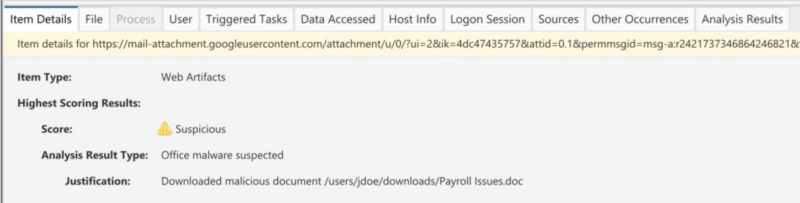
That data has been moved to 2 places:
- The Summary panel on the right of tables has basic information
- The new Item Inspector has all of the details and new pivot features
The Item Inspector allows you to jump from a table of items into the details of just that single artifact and then pivot from it without losing your original focus.
For example, you are in the Notable Items panel and need to examine a triggered task. You press either the “Item Inspector” in the upper right or a “More Details” button on the right.
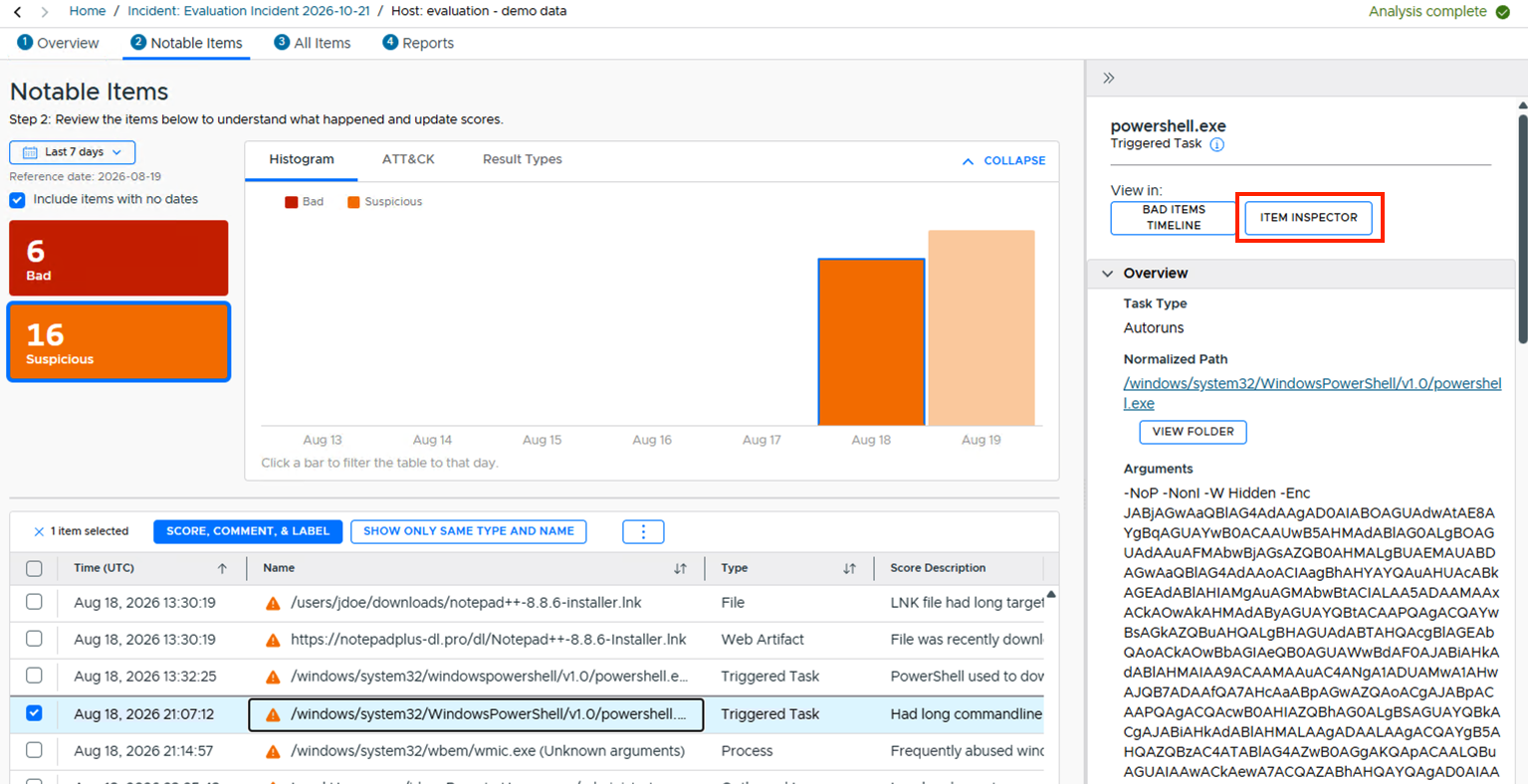
This launches a new overlay panel that is all about the triggered task. You can now research it and its related artifacts and not disrupt your previous efforts. You can get details on its scores, GenAI info, sources, and other related information.
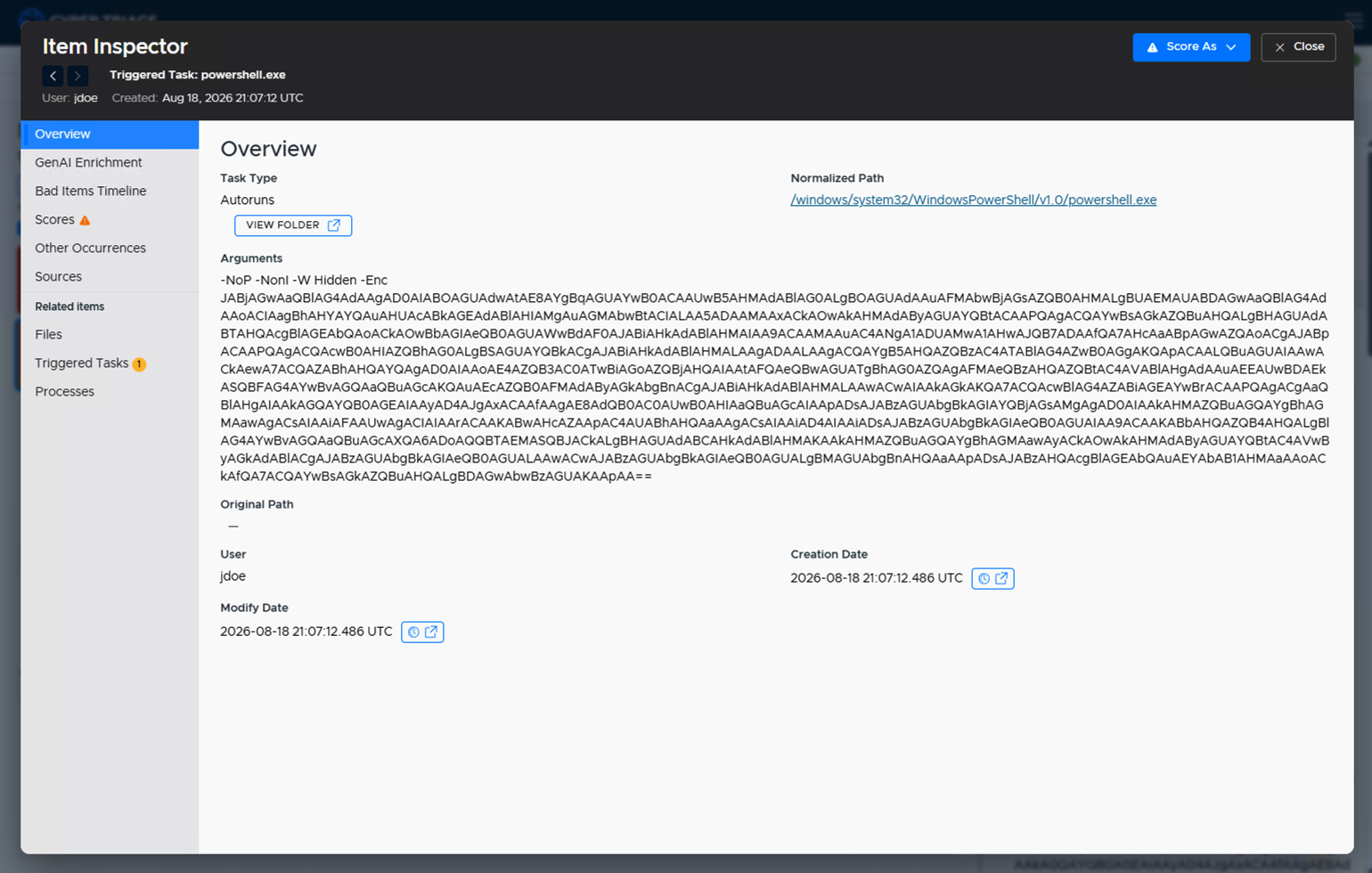
All of the tabs from the lower right (and more) can be found here. You can even recursively go into an item, such as a related file.
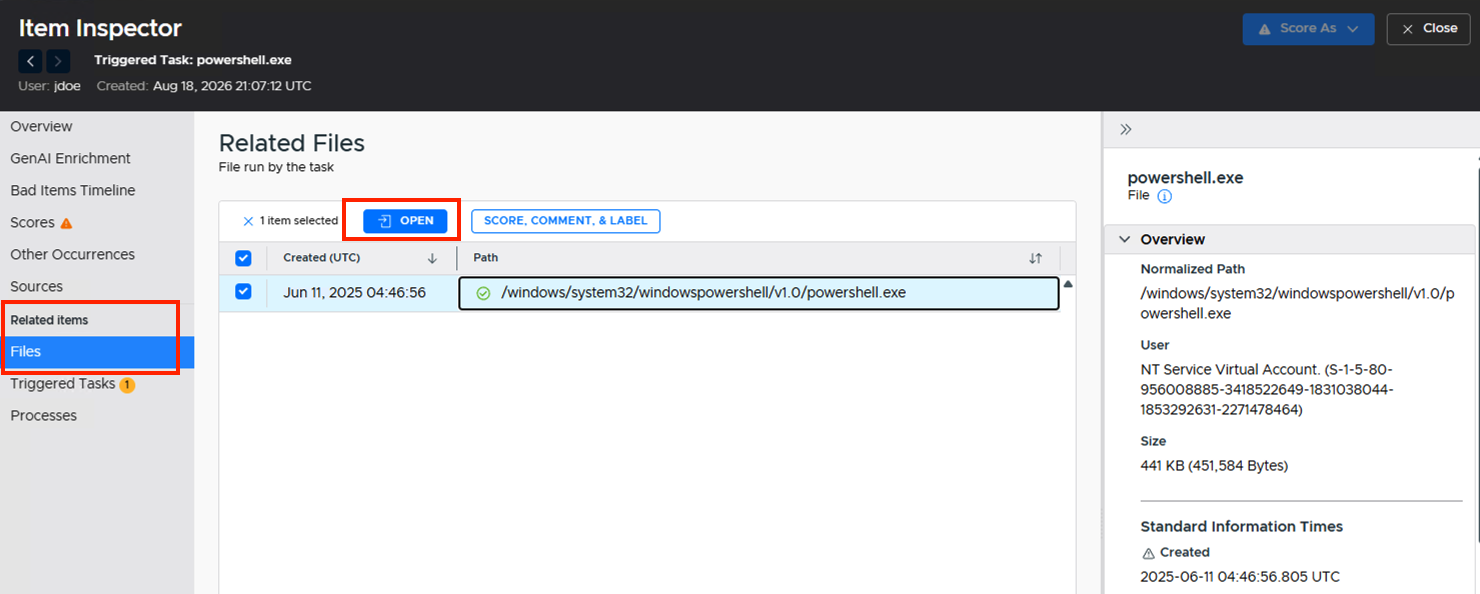
It loads that item into the inspector as a stack. Notice the breadcrumb at the top updates. We’re now looking at the EXE file.
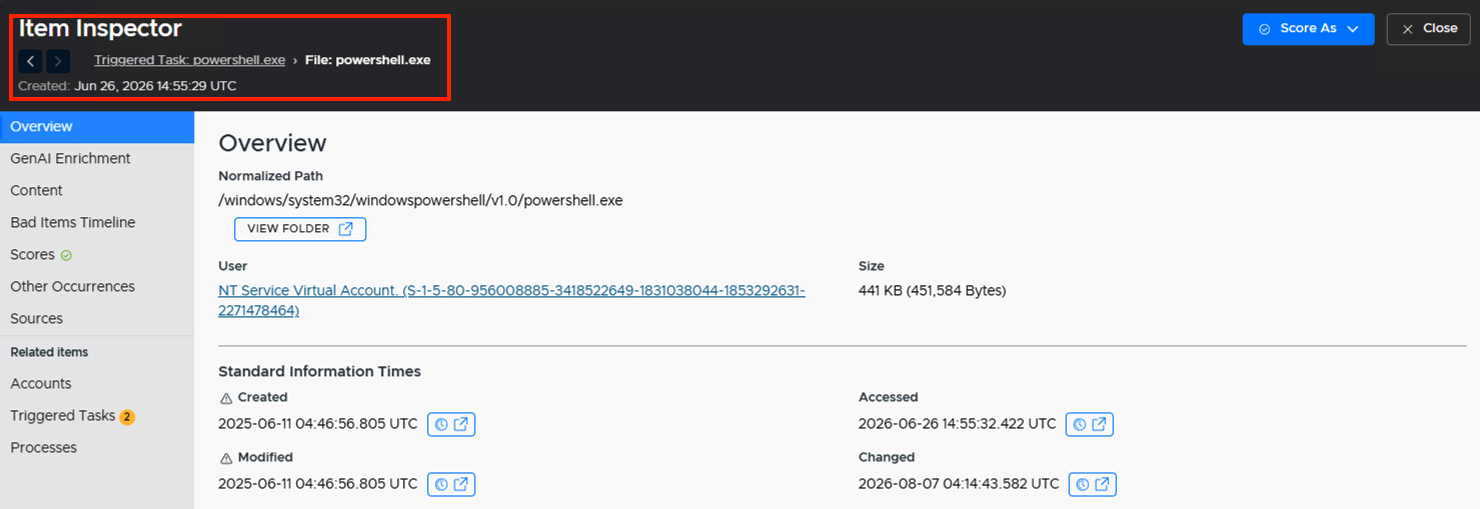
You can click around the file and pivot to its user or other processes.
When you are done, you can change the score (if appropriate) in the upper right and close the inspector.

You’re now back in the Notable Items view where you started.
Bad Items Timeline Moved
In v3, the Bad Items Timeline was always on the right in the All Items view.
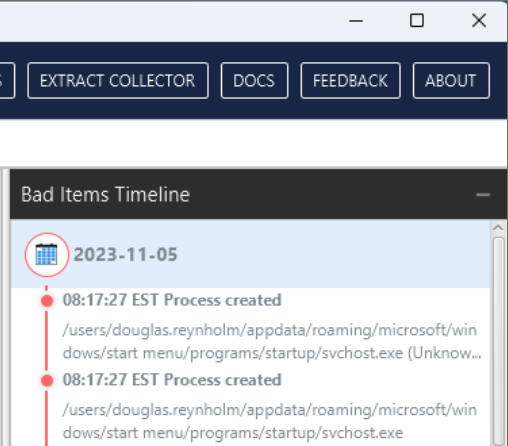
In v4, you need to explicitly launch it, but you can do it from many more places.
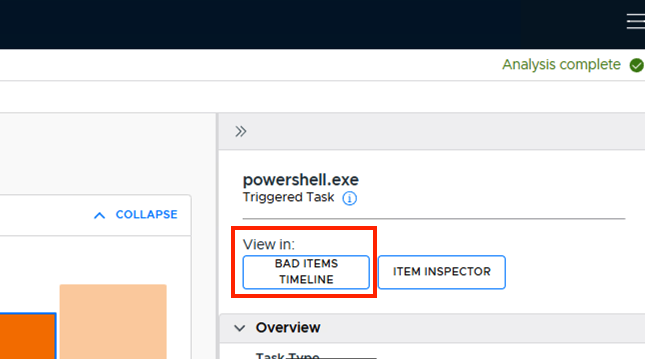
When pressed, you get an overlay dialog with the selected item inside of the Bad Items from ALL hosts. This allows you to see where it fits into the known attack sequence.
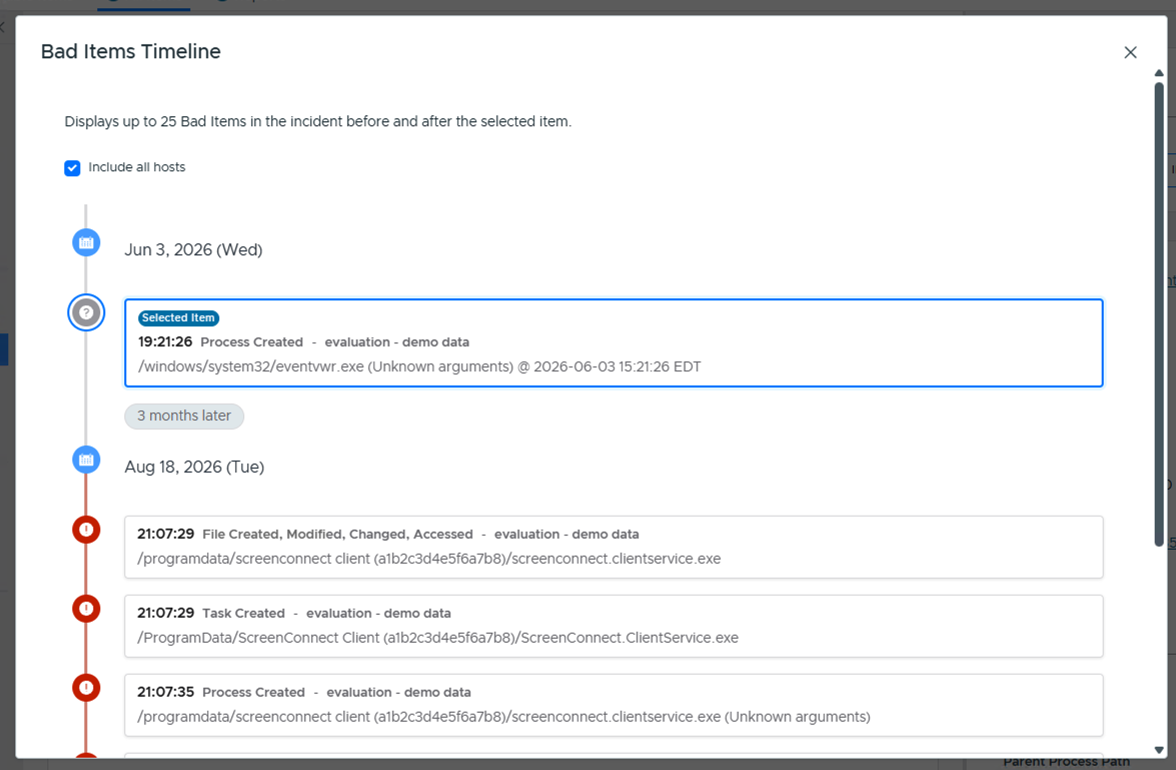
There are 3 differences from v3:
- The selected item is automatically inserted into the list instead of you needing to think about where it fits.
- It shows all hosts, not just the current one.
- It shows the time gaps between events (so you don’t have to subtract).
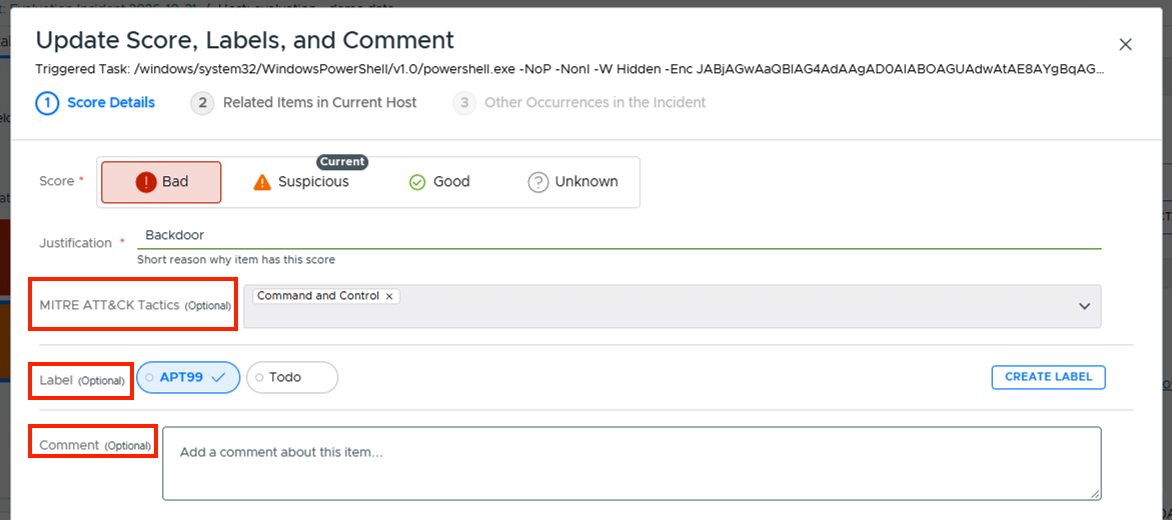
Edit Comments and Labels With the Score
You now edit an item’s score, label, and comment in the same panel and button. v3 used to have separate buttons for each.

You can also add an ATT&CK Tactic from there.
New Features to Be Aware of
AI is Enabled By Default
We have extended access to AI features to everyone through the end of the year. After that, it will be for Enterprise licenses only.
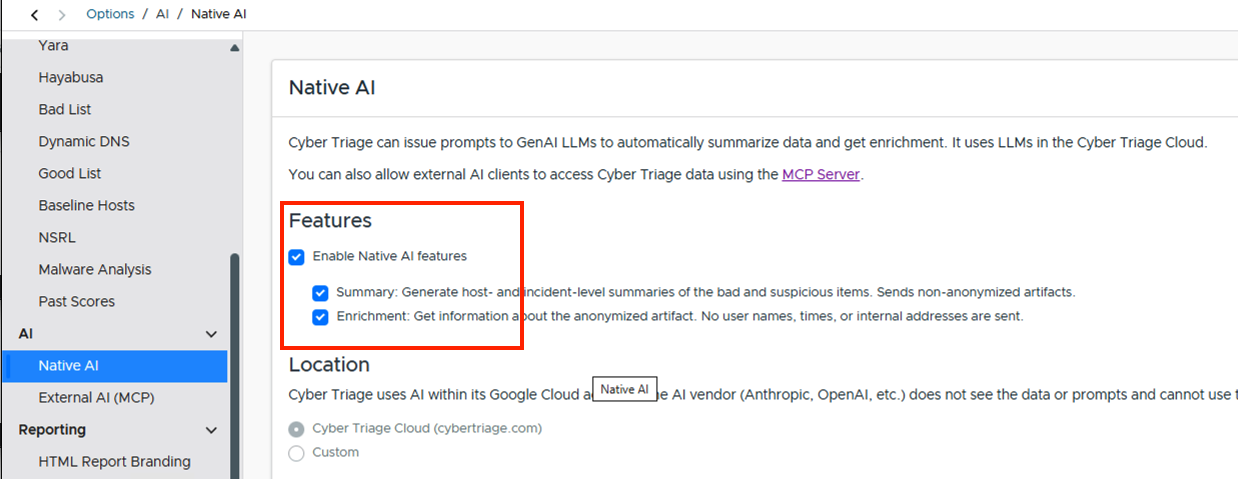
Version 4.0 sends data to AI in our servers (not used for training). You can disable it in the options panel.
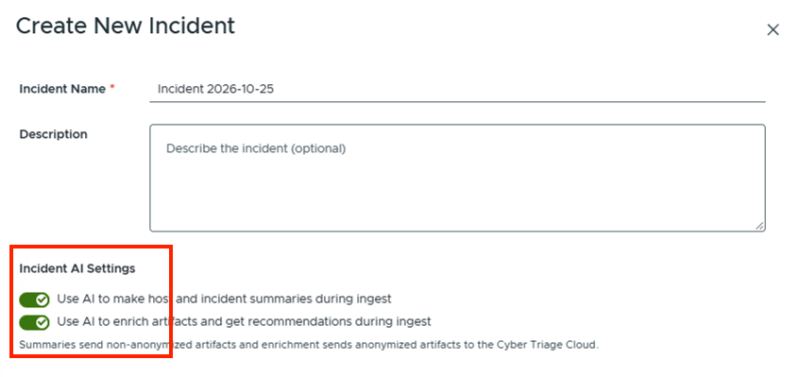
 You can also change the AI settings for each incident as you create them.
 There are 2 types of prompts that are being performed:
- Artifact Enrichment: This anonymizes the artifacts and sends them to the AI for additional information and analysis. User names, hosts, etc. are removed. You see the results in the right-hand summary panel.
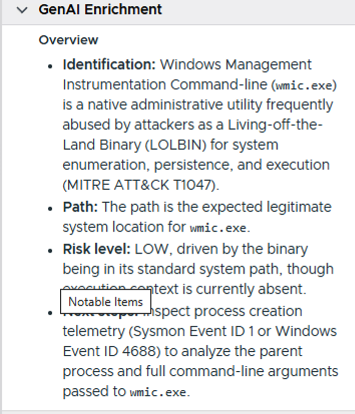
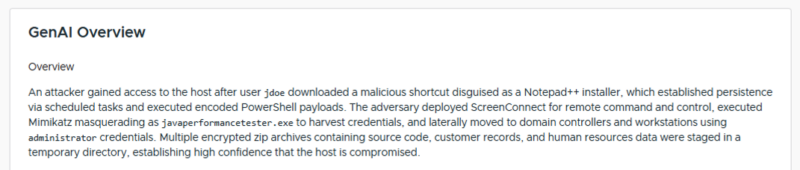
- Incident and Host Summaries: These generate a text summary of the bad and suspicious items. These send non-anonymized artifacts to the AI. You see these results in the overview panels:
Server Accessible Storage
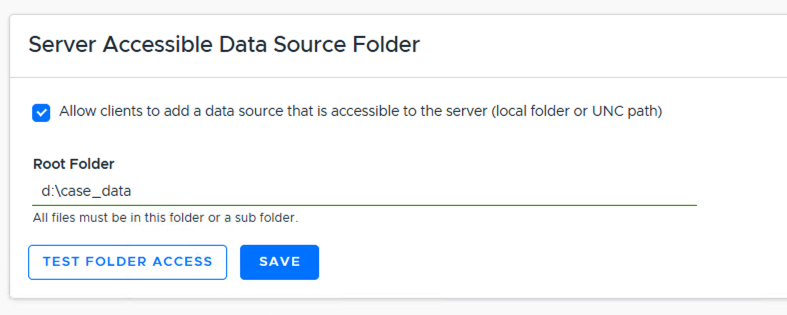
If you want your Team server to process disk or memory images, you need to specify a root folder that they will be located in. You can do that in the Options panel under “Team Settings”:
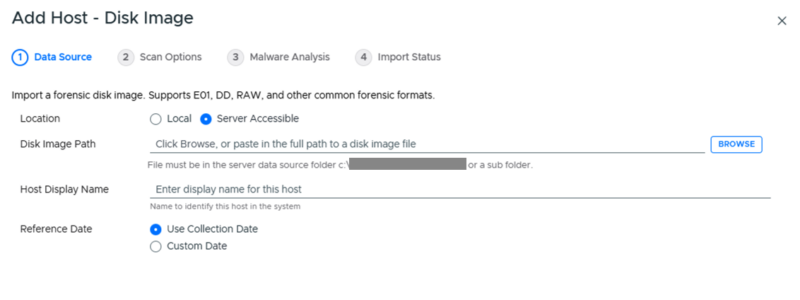
This then allows various “Add Host” panels to have a “Server Accessible” option with a “Browse” feature to select a file in that folder:
See the user manual for more setup details.
Use Team Thick Client for MCP and Local Processing
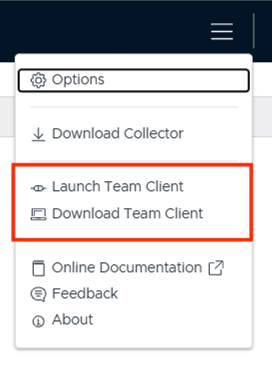
If you are a Team customer, users can use the thin client unless they want to use MCP or locally process a disk or memory image on their computer.
To get the Team Client, log into the web app, go to the upper-right menu, and choose “Download Client”:
Improved Timeline Grouping
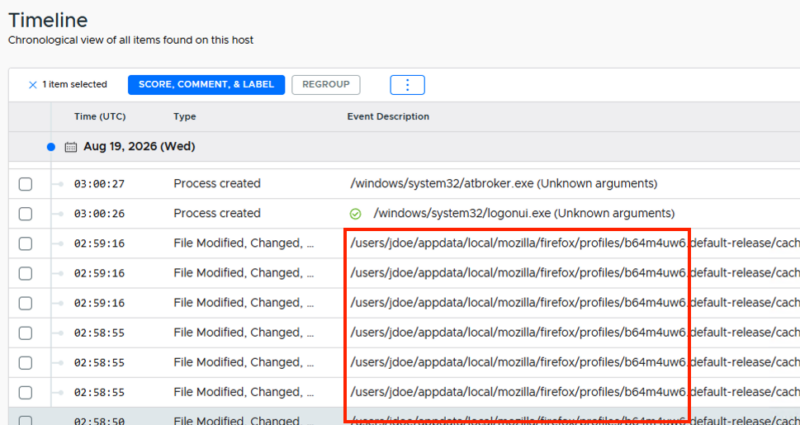
The timeline panel within a host has been improved to group sequential items if they are in the same folder or URL. This helps to reduce noise. You can see 3 groups (48 items, 14 items, and 53 items) for Mozilla activity.
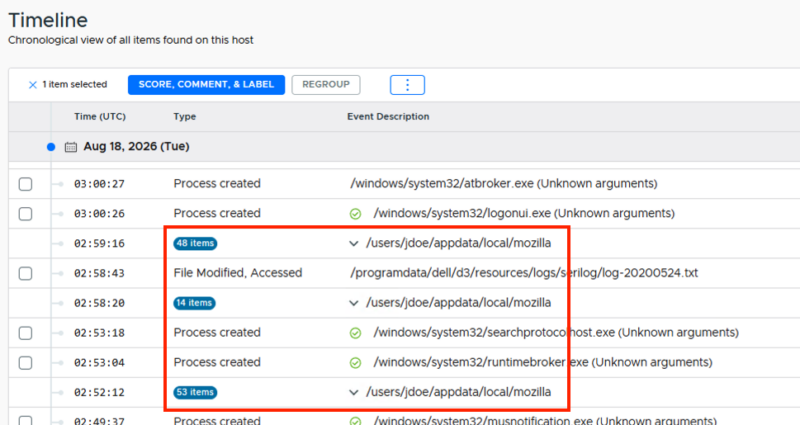 Click it to expand.
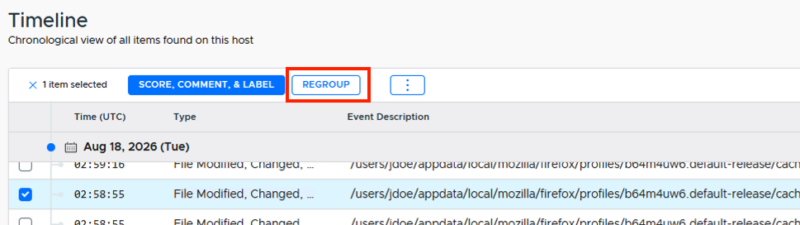
And use the REGROUP button at the top to collapse again if you select one of the expanded items.
Minor Cosmetic Changes
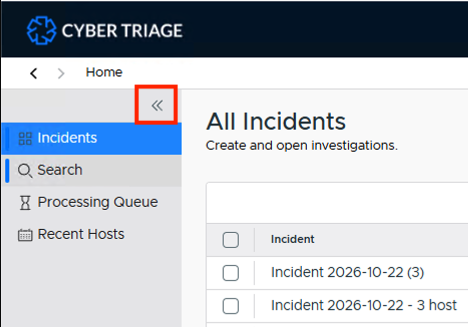
You’ll see more left-hand menus for navigation of the pages that used to be buttons. Each major section (Home, Incident, Host) has its own set of left-hand menus. You can use the arrow to collapse it.
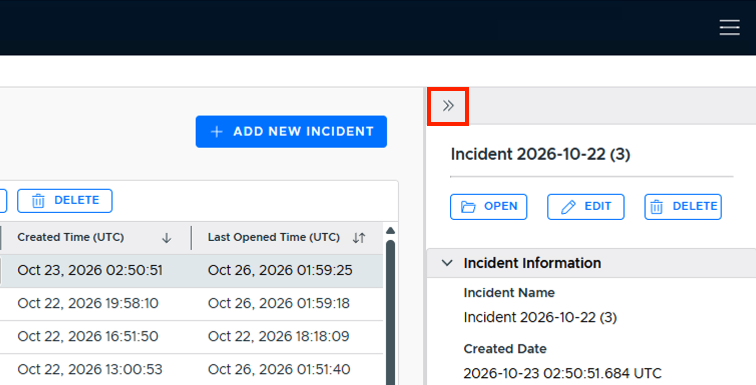
When you select an item in a table, you’ll now see details on the right instead of below. It also has an arrow to collapse it.
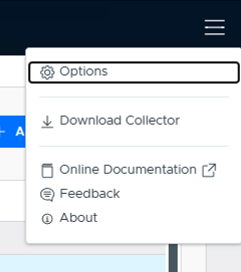
The upper-right buttons for options and getting the Collector are now in the upper right under the hamburger menu (yes, that’s what it’s called…).
We’re Here to Help
If you have any questions about where stuff moved to, reach out to support <at> sleuthkitlabs <dot> com. We also recommend watching our short video on how to investigate a host with Cyber Triage. It shows how to piece together all of these new UIs.