Cyber Triage 4.1 is out with lots of extensions to our massive 4.0 release last month. This blog post dives into a few of the key new things, which are mainly around the evolving use of AI. As always, the full list of changes is in the user manual.
Bring Your Own AI
4.0 added “Embedded Prompts” into Cyber Triage to generate summaries and enrich artifacts. It used LLMs in our cloud infrastructure. Now you can use your own LLMs and control where your data goes.
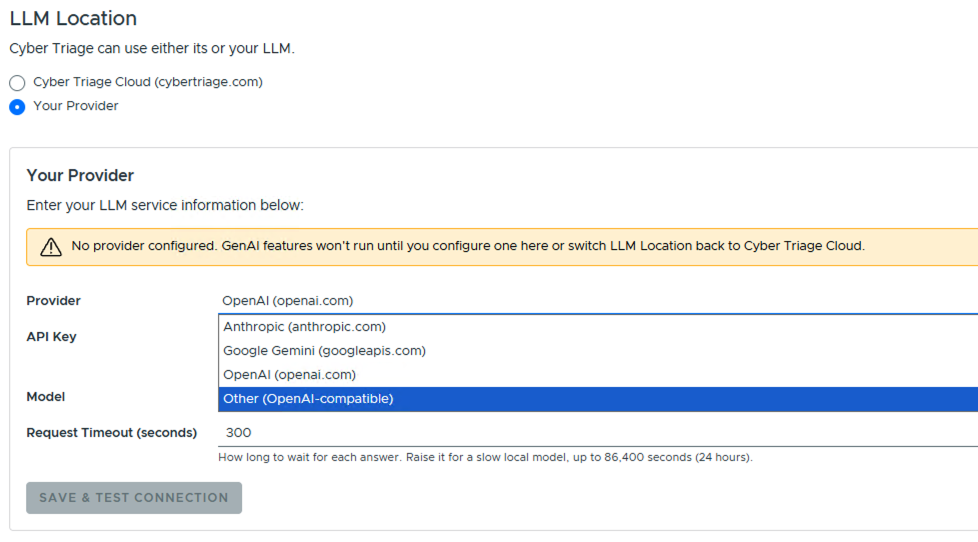
You can supply your own API key from an OpenAI, Anthropic, or Gemini subscription. Or point it at an OpenAI-compatible API, such as one from a local LM Studio or AWS Bedrock.
For example, if you run local LLMs using LMStudio, it can expose an OpenAI-compatible API at http://localhost:1234.
See the user manual for more details.
NOTE: This will require an Enterprise license as of Jan 1, 2027.
AI Timeline
When GenAI is enabled (and licensed), it will now also generate a host- and incident-level timeline of the bad and suspicious scored items, grouped by attack phase. It’s the same core data that we display in the “Notable Items” table, but this is AI’s “opinion” on how they are grouped.
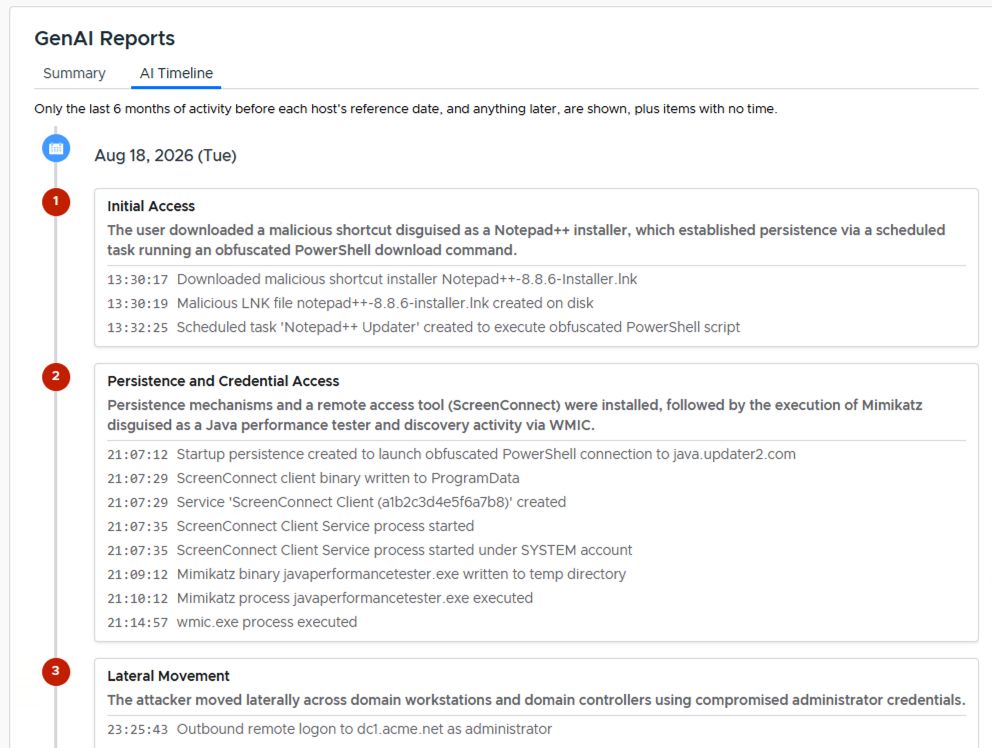
This feature is enabled if the “summary”-type prompts are enabled.
AI Language
LLMs can write in many languages and now you can choose which one you want to read (if you have GenAI enabled). The default is still English, but choose your native language to make it easier to read and copy into your final reports.
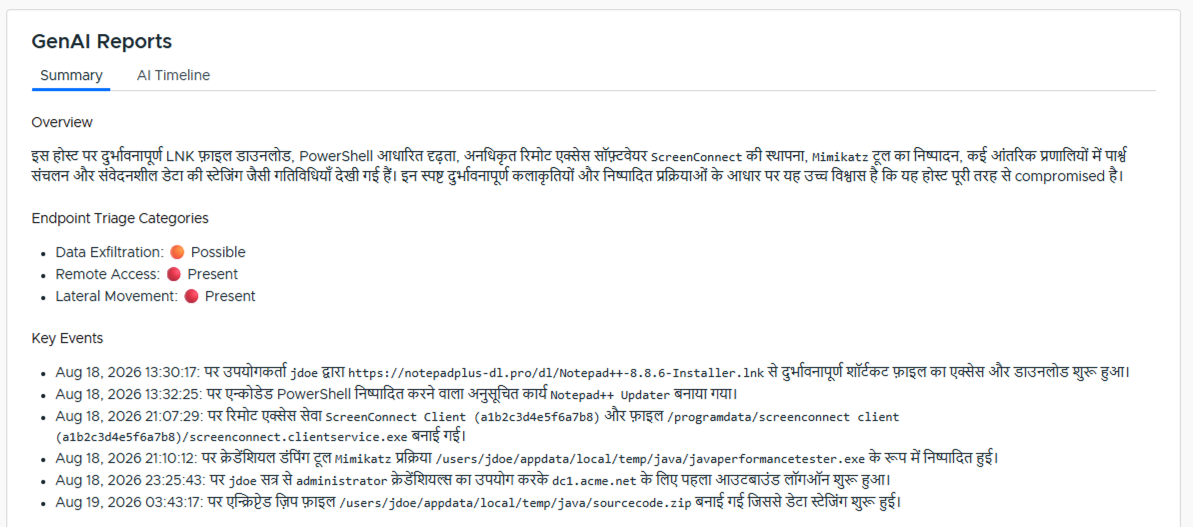
This can be changed in the Options panel and per-incident.
Full Incident Timeline
Cyber Triage now has an incident-level timeline with all items from all hosts. We historically had a full timeline only at the host level, and the incident level focused on the scored items.
Now, you can choose the “Full Timeline” at the incident level. You can filter by host and artifact type. Consecutive rows are still collapsed if they are in the same folder and host.
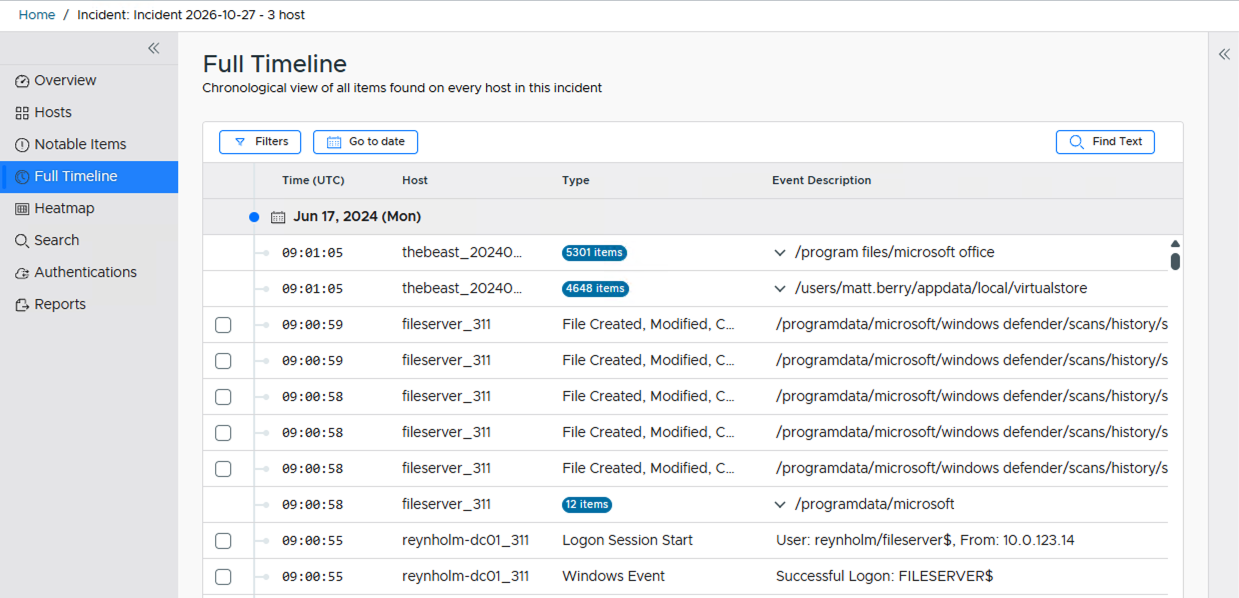
Note that we now have SEVEN timelines to achieve different goals and we’ve updated their names to make them easier to tell apart:
- Notable Items Timelines: Only the bad and suspicious items. Exists at both the incident and host levels.
- AI Timelines (new in 4.1): Same as Notable Items, but grouped using AI reasoning. Exists at both the incident and host levels.
- Full Timelines: All items, regardless of score. Exists at both the incident and host levels.
- “View in Bad Items Timeline”: An overlay-type view that allows you to visualize an item amongst the bad items in the incident.
You can see screenshots of all of them in the user manual.
Try It Out
Customers should have received the download link. If you aren’t a customer yet, you can try the 7-day evaluation.
4.2 is in the works with a big collection and acquisition theme.